In-World Indicators (Hawkeye)
Hawkeye draws several visualizations directly inside the 3D scene rather than as HUD overlays. These diegetic indicators exist in world space. They scale, rotate, and occlude with the camera, and they encode flight data as part of the same visual world that contains the vehicles.
This page covers trails, ground track projection, and correlation overlays (line and curtain). For the screen-space HUD elements (telemetry rows, transport bar, numpad, annunciators), see The HUD.
Trails
Trails are the single biggest analytical feature in the 3D viewport. Hawkeye records every vehicle's flight path and renders it as a colored trail that encodes flight dynamics into its appearance. Four rendering modes let you see different aspects of the flight at a glance.
Press T to cycle trail rendering modes: off → directional → speed ribbon → drone color → off.
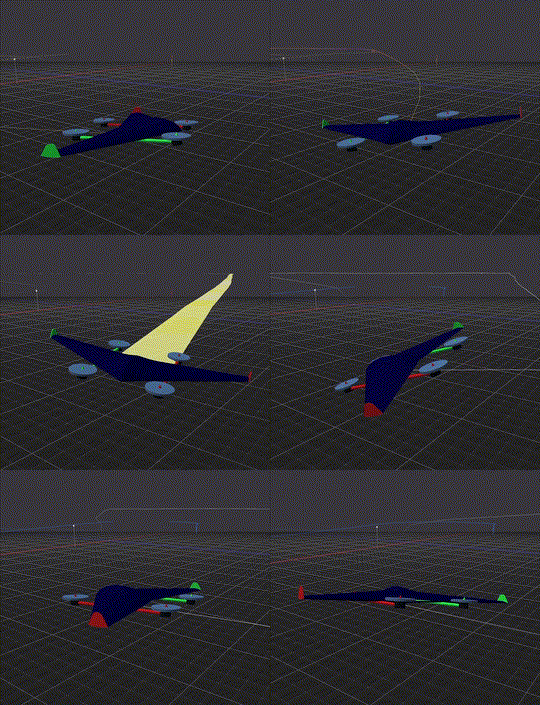
Across all modes, trails fade with age: newer segments render at full opacity, older segments fade toward transparent. This gives temporal depth without requiring a separate timeline indicator.
Directional trail (mode 1)
The directional trail encodes flight dynamics (climb, descent, pitch, and roll) into the trail color via theme-driven color blending. Each attitude component contributes its own color, and the final trail color at each segment is a blend of the vehicle's state at that moment.
Six theme color slots drive the blend:
| Signal | Threshold | Contributes color |
|---|---|---|
| Forward (base) | always | trail_forward |
| Climbing | vertical velocity > 0 | trail_climb (full at +5 m/s) |
| Descending | vertical velocity < 0 | trail_descend (full at −5 m/s) |
| Nose-up pitch | pitch angle > 0 | trail_backward (full at +15°) |
| Positive roll | roll angle > 0 | trail_roll_pos (70% weight at full roll) |
| Negative roll | roll angle < 0 | trail_roll_neg (70% weight at full roll) |
The colors overlay additively, so a steep climb with positive roll will show a blend of trail_climb and trail_roll_pos. In flat-and-level cruise, the trail stays in the base trail_forward color. This makes the directional trail a kind of flight-dynamics x-ray: you can see where the vehicle climbed, descended, banked, or pitched just by looking at color shifts.
Width is controlled by the theme's thick_trails setting:
- Thin (default) renders as 1-pixel lines
- Thick renders as a flat ribbon 0.026 m wide, better visibility on high-contrast themes like Snow
Because all six signals come from theme slots, switching themes (press V) can change the entire trail color scheme without changing the underlying data. The Rez theme's neon palette will encode the same climb as a different hue than the Grid theme's blue tones.
Speed ribbon (mode 2)
The speed ribbon encodes speed and acceleration into both the trail's width and its color. Unlike the directional trail (which encodes attitude), the speed ribbon is about how fast the vehicle is moving and whether it's speeding up or slowing down.
Width scaling: the ribbon's half-width at each point is:
hw = min_half_w + (speed / max_speed)² × max_half_wwhere:
min_half_w = 0.02 m(the thinnest the ribbon ever gets)max_half_w = vehicle_scale × 0.25 m(max width proportional to vehicle size)max_speedis the maximum speed seen so far during this recording
The power-of-two scaling means the ribbon stays thin longer, then ramps sharply at high speed. A drone cruising at 50% of max speed will show a ribbon about 25% of maximum width, not 50%. The effect: slow sections are clearly thin, fast sections are dramatically thick, and the transitions are visually obvious.
Color (heat gradient): the ribbon color is drawn from the theme's heat gradient (cool → warm → hot) based on:
heat = speed_normalized + acceleration_shiftThe acceleration shift adds to heat when the vehicle is accelerating and subtracts when decelerating. An accelerating drone runs hotter than a constant-speed drone at the same speed. A braking drone runs cooler than a constant-speed drone. The result: you can see not just how fast the vehicle was going, but whether it was speeding up or slowing down at that moment.
Use the speed ribbon for:
- Finding the fastest points in a flight at a glance
- Spotting aggressive acceleration or braking phases
- Comparing high-energy maneuvers between drones
Drone color trail (mode 3)
Each drone's trail is rendered in its assigned fleet palette color with age-based fade. No flight dynamics encoding, just identity.
Essential for multi-drone scenes: when five drones are flying in formation, the drone color mode lets you visually follow which trail belongs to which drone without cross-referencing IDs. The palette provides 16 distinct colors with warm/cool alternation for adjacent drone indices, so neighboring drones are always visually distinguishable.
Use drone color trails for:
- Any multi-drone replay where identity matters more than flight dynamics
- Comparing path divergence between drones visually
- Screen recording where the speed ribbon or directional trail would be too busy
Theme-driven across all modes
All trail rendering is driven by the active theme. Switching themes via V immediately updates every visible trail's color palette. The Grid, Rez, and Snow themes each define their own forward / climb / descend / pitch / roll / heat color slots, tuned for their respective backgrounds. Custom .mvt themes can override any or all of these. See Themes.
Ground Track Projection
Press G to toggle ground track projection: a 2D shadow of the vehicle's trail drawn on the ground plane. This makes it easy to see the horizontal path the vehicle flew, independent of altitude changes.
Ground tracks are especially useful for:
- Comparing mission paths against a map
- Seeing lateral deviation from a waypoint line
- Visualizing navigation accuracy without altitude visual noise
The ground track uses a dimmed version of the current trail color and runs alongside the 3D trail. Because it's tied to the active trail mode, ground track honors speed ribbon widths, directional color blending, or drone color selection. Whatever the 3D trail is doing, the ground projection matches.
Correlation Overlays
When comparing two drones during multi-drone replay, Hawkeye can render two kinds of 3D overlays between the selected drone and a pinned drone. Both are toggled via Shift+T, which cycles: off → correlation line → correlation curtain → off.
Both overlays require a pinned secondary drone. See Correlation Analysis for how to set up pinning and what the PRSN / RMSE statistics mean.
Correlation line
A direct 3D line connecting the two drones' current positions. Renders in the pinned drone's fleet color (so if you pin drone 3, the line is drone 3's color).

Simple and always visible. The line just shows current separation between the two drones; it doesn't remember past positions. Good for:
- Seeing instantaneous distance and relative position
- Confirming which two drones are being correlated
- Lightweight comparison overlay when the curtain would be too busy
The correlation line also renders on the heading-up radar panel in Tactical HUD mode, so you can see it in 2D even when the 3D camera is focused elsewhere.
Correlation curtain
A semi-transparent 3D ruled surface spanning the two drones' trail histories. Each pair of corresponding samples (same timestamp, two different drones) becomes a quad, and the sequence of quads forms a "curtain" that shows the evolving separation between the two drones over time.

The curtain is a burst-analysis tool, not a persistent display. It rebuilds each time you toggle the mode on, starting fresh from the current playback position. This is intentional: a curtain that accumulated over an entire long flight would become visually incoherent. Use it to study a specific maneuver or time window, then toggle off.
Use the curtain for:
- Seeing where two drones' paths diverged and converged over time
- Analyzing formation-keeping accuracy during a maneuver
- Visual comparison of flight characteristics (aggressive vs smooth path)
The curtain uses a flat shading tied to the primary drone's color with added transparency. It doesn't encode flight dynamics; those are on the trails themselves. The curtain is purely about relative geometry between the two drones.
Related
- The HUD for screen-space (non-diegetic) telemetry overlays
- Cameras and Views for camera modes, orthographic views, themes, and vehicle models
- Correlation Analysis for the statistical side of comparing two drones (PRSN, RMSE, CONF)
- Multi-Drone Replay for deconfliction, takeoff alignment, and loading multiple logs