
Multi-Drone Replay (Hawkeye)
Hawkeye loads up to 16 ULog files simultaneously and replays them together as a coordinated swarm. This page covers the multi-drone-specific features: deconfliction when drones have different launch points, CUSUM-based takeoff alignment, and real-time correlation statistics between pinned drones.
For single-log replay basics and the transport controls, see ULog Replay.
Loading multiple logs
hawkeye --replay drone1.ulg drone2.ulg drone3.ulgUp to 16 files are supported. Each becomes a replay-backed vehicle in the scene, with its own trail, markers, and telemetry. Hawkeye pre-scans every log (as with single-log replay) and additionally checks for conflicts between them.
Deconfliction
On load, Hawkeye compares the home positions of every loaded log and checks for three kinds of conflict that would break a shared-origin view:
- Shared launch point: two or more drones with identical or near-identical home positions. They would render on top of each other.
- Geographic spread > 1 km: drones launched from very distant locations. They would be scattered across an unreasonably large viewing area.
- Missing position data: one or more logs have neither
home_positionnorvehicle_global_position. See Position Data Tiers for what happens in this fallback case.
Default: Formation (no conflict)
When the loaded drones have clean, compatible home positions and no conflicts are detected, Hawkeye uses Formation mode automatically. Drones render at their real GPS positions in a shared NED coordinate system, with colored home position markers at each launch site. No prompt appears, playback starts immediately.
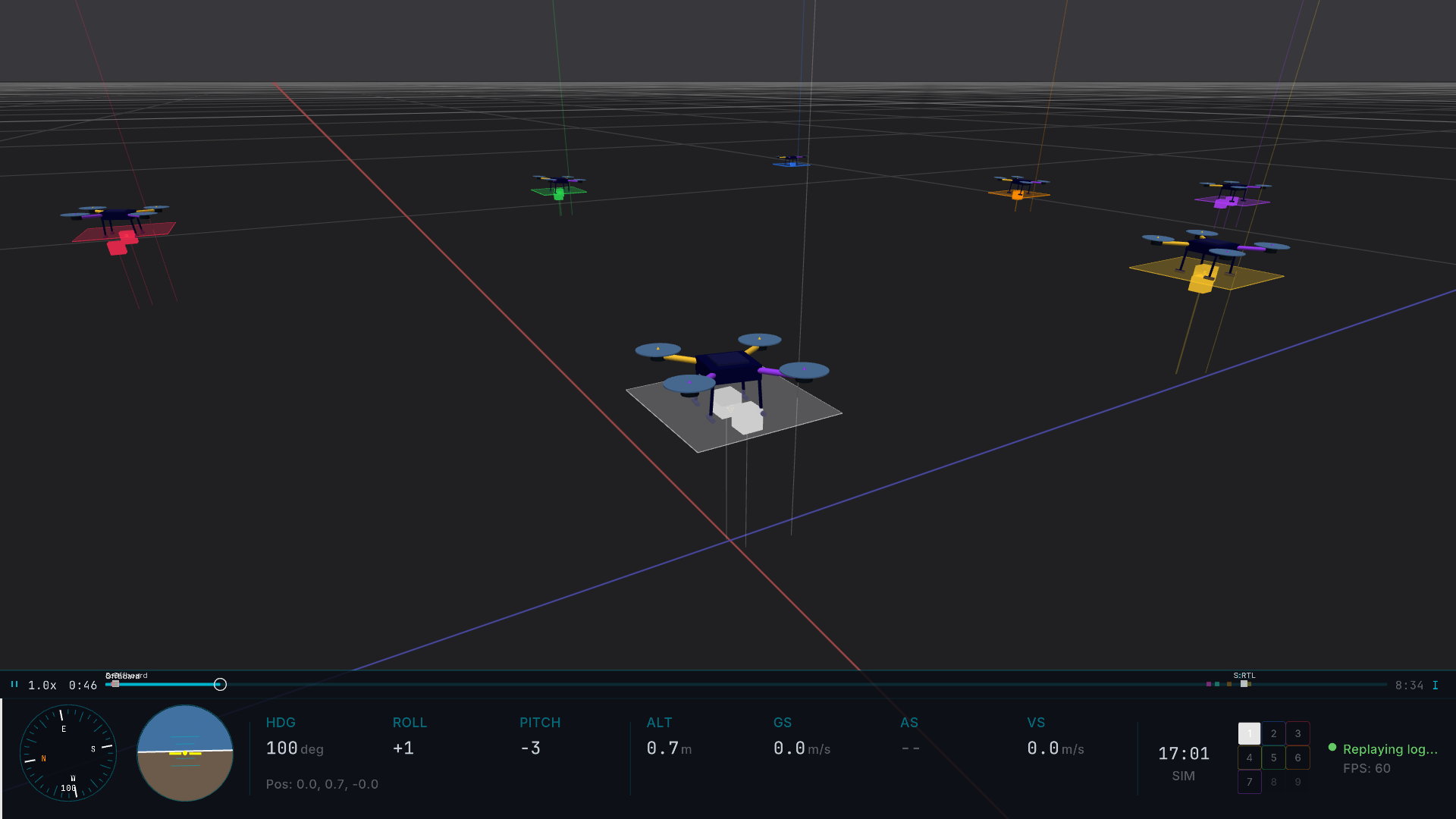
Formation is the correct mode for coordinated swarms that actually flew together. It's also the only mode that preserves real-world geometric relationships between drones.
Formation mode cannot be selected manually if conflicts are detected; it's only available when it would produce a sensible view. If you want Formation on conflicting logs, you'd have to resolve the conflict at the data level (for example, by regenerating home positions).
Conflict detected: deconfliction prompt
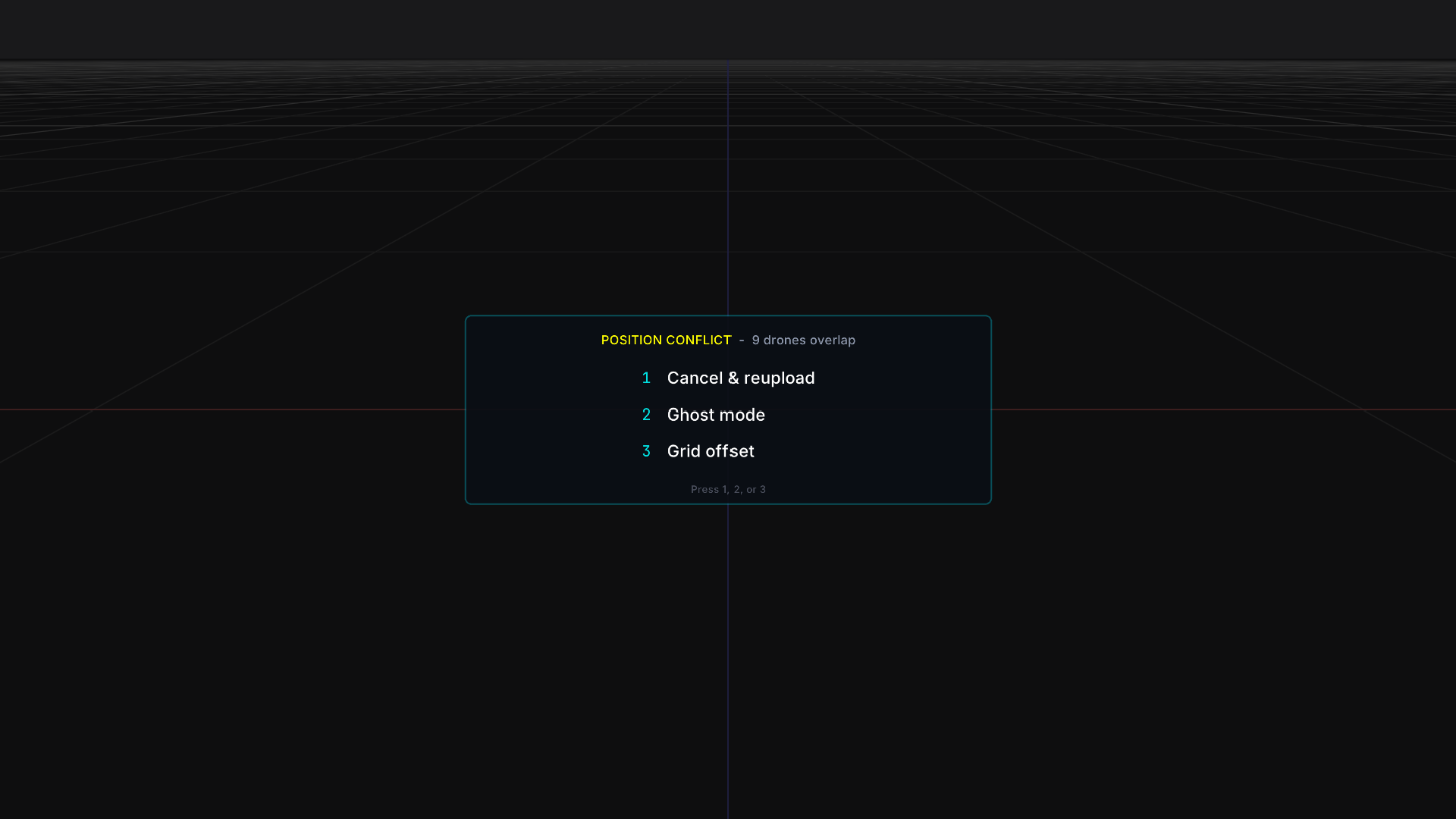
If any conflict is detected, a deconfliction prompt appears before playback starts, offering three resolution modes:
Ghost
Non-primary drones render at 35% opacity with a color tint. The primary drone is fully opaque.
Use when comparing two (or more) flights of the same mission, e.g., before/after a PID tuning change, or two pilots flying the same waypoint pattern.
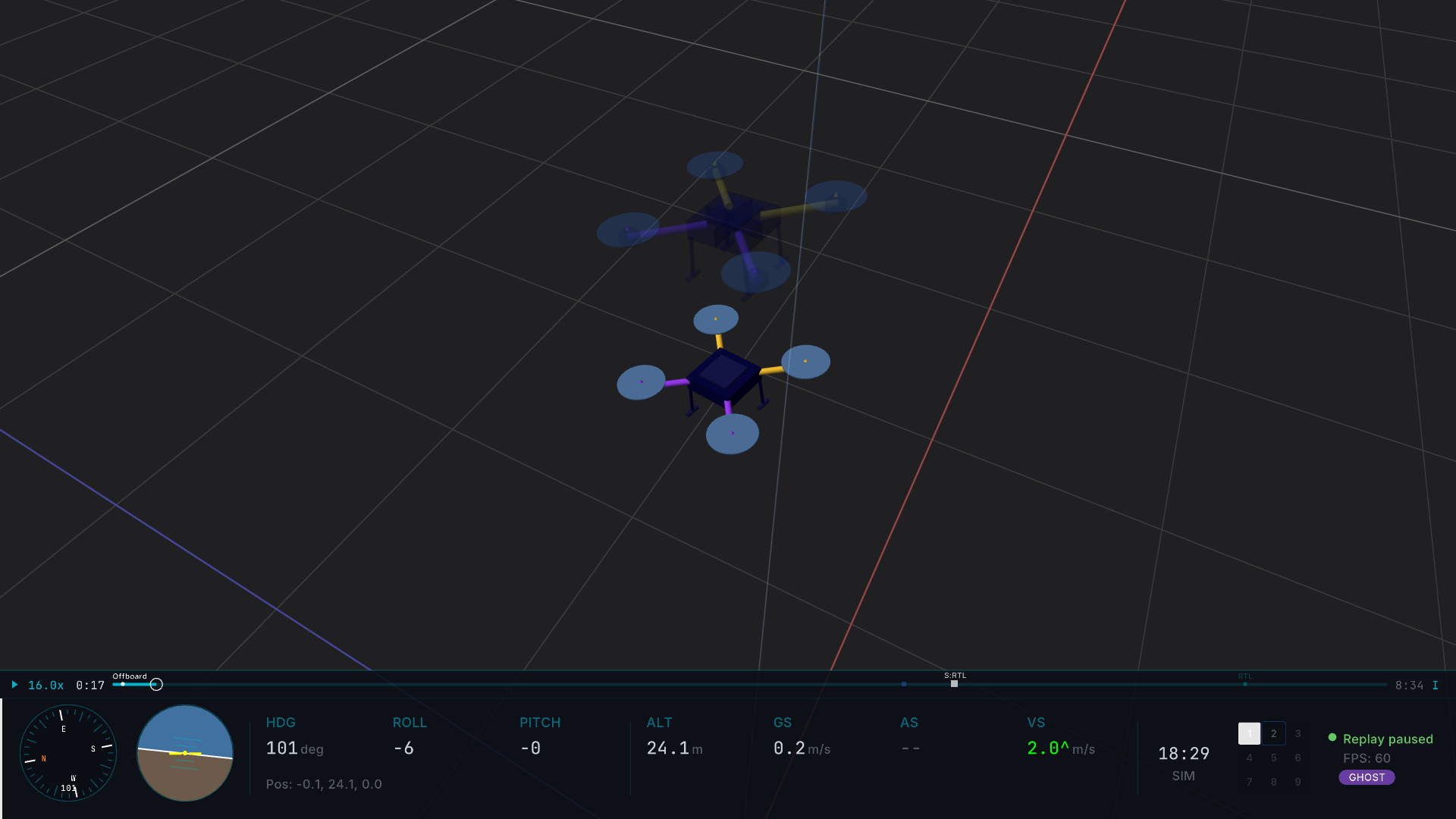
You can also force Ghost mode from the command line without a prompt:
hawkeye --ghost before.ulg after.ulgGrid Offset
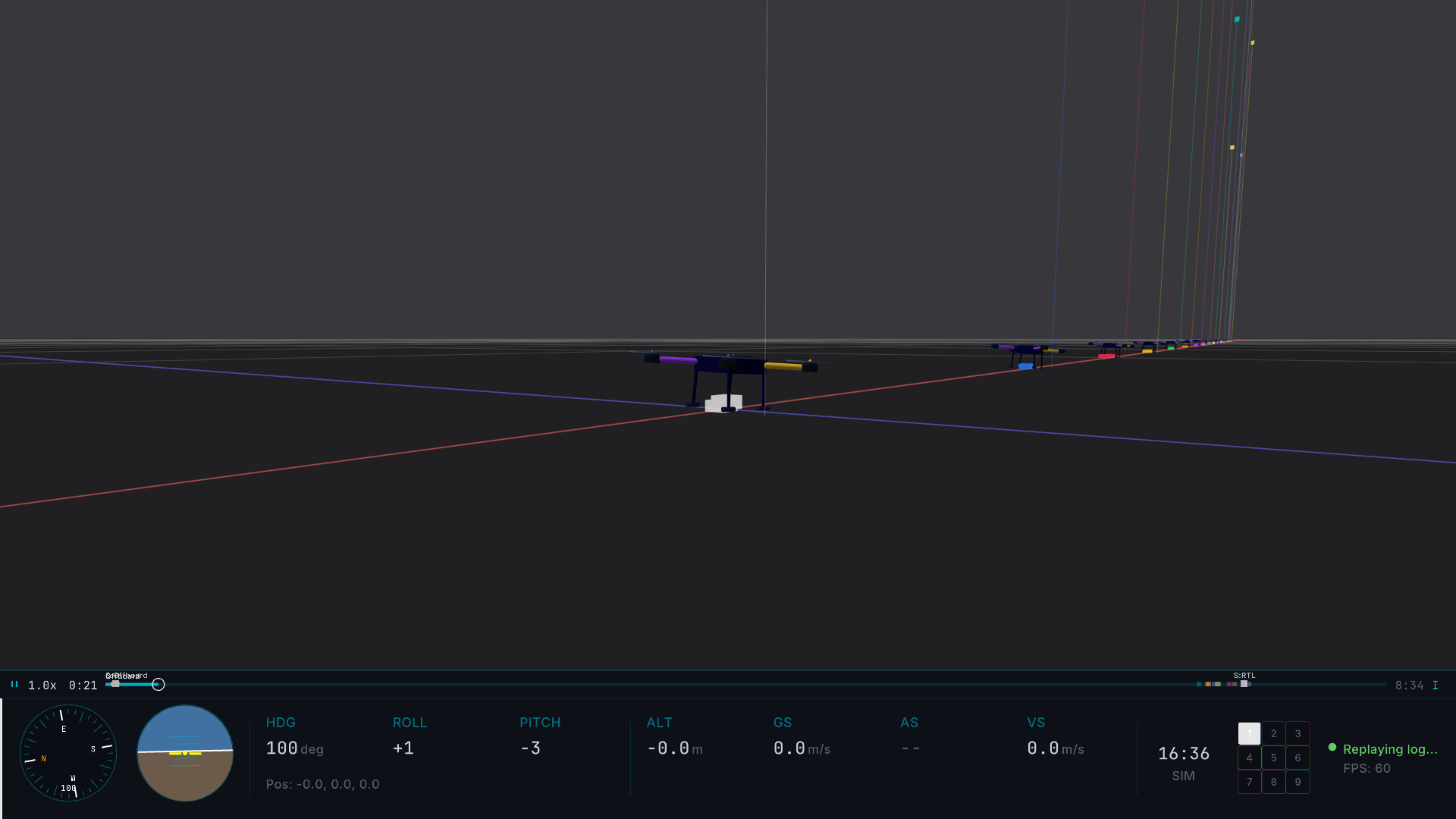
Each drone is shifted by +5 meters along the X axis for visual separation. All drones use the primary drone's origin as a reference point.
Use when drones share a launch point (which is what would have triggered Formation's conflict detection in the first place) but you still want to see their individual paths without overlap.
Narrow Grid
Collapses drones from geographically distant locations into the same view area with 1-meter spacing.
Use when comparing flights from entirely different test sites, where the drones have nothing in common geographically, but you want to compare their trajectories side by side.
Switching modes mid-replay
Press P at any time during multi-drone playback to cycle the view mode. The available modes depend on whether the logs had conflicts at load time:
- No conflict at load:
Pcycles Formation → Ghost → Grid Offset → Narrow Grid → Formation. All four modes are available. - Conflict detected at load:
Pcycles Ghost → Grid Offset → Narrow Grid → Ghost. Formation is excluded because the conflict that prevented it at load time is still present.
Use P to flip between modes for different visual comparisons without reloading the logs.
Takeoff Alignment
Drones in a swarm rarely log their start at the same wall-clock time. Drone A might have powered on five seconds before takeoff; Drone B powered on twelve seconds before takeoff. Played back naively, Drone A appears to take off at playback time 5 s while Drone B takes off at playback time 12 s, visually unsynchronized even though both launched simultaneously in real life.
Press A to toggle takeoff alignment.
With alignment on, each drone's timeline is shifted so t = 0 corresponds to its detected takeoff moment. All drones now appear to lift off simultaneously. Press A again to return to absolute log timestamps.
How takeoff is detected
Hawkeye runs a CUSUM (cumulative sum control chart) algorithm over each log's vertical velocity:
- Track vertical velocity deviations above a 0.3 m/s drift allowance (values below this are considered sensor noise).
- Accumulate those deviations. When the running sum crosses a threshold, that moment is flagged as a takeoff event.
- Corroborate with flight mode transitions. If the drone also transitions into Takeoff, Mission, or Auto mode near the CUSUM event, confidence is higher.
Confidence scores
Each detected takeoff has a confidence score shown as the CONF badge in the HUD:
- 70 to 100%: clean CUSUM trigger with a sharp vertical velocity jump and a corroborating mode change
- 30 to 70%: CUSUM detected but without a sharp jump or mode corroboration
- 0 to 30%: fallback heuristic from flight mode transitions only (no CUSUM trigger)
- Blank: no takeoff detected (drone was already airborne at log start, or log is pure hover)
Low confidence scores are informational, not errors. Alignment still works at low confidence; it just means the detected moment may be slightly off from the actual takeoff.
Correlation Analysis
When comparing two drones (same mission flown twice, or two drones in formation), you often want quantitative measurements of how similar their trajectories are. Correlation analysis provides real-time Pearson correlation and RMSE statistics during playback.
Activating correlation
- Load a multi-drone replay.
- Select a primary drone with a number key or
TAB. - Pin a secondary drone with
Shift+1throughShift+9. - PRSN / RMSE / CONF badges appear in the Console HUD sidebar.

The metrics
- PRSN is the Pearson correlation coefficient on 3D position.
1.0means the drones' movements are perfectly correlated (tracking together);0means uncorrelated; negative values mean inversely correlated. Updates in real time as the flight progresses. - RMSE is the root mean square position error in meters, the absolute distance deviation between the two drones' paths. Lower means closer tracking.
- CONF is the CUSUM takeoff confidence (from Takeoff Alignment). It's context for interpreting PRSN/RMSE: if the detected takeoff times are low-confidence, the alignment may be slightly off and the correlation metrics will reflect that.
Visual overlays
Press Shift+T to cycle 3D correlation overlays between the selected and pinned drones:
| Mode | Rendering |
|---|---|
| Off | No overlay |
| Line | Direct 3D line between the two drones' current positions |
| Curtain | Semi-transparent ruled surface spanning the two drones' trail histories |
Both overlays are diegetic; they render inside the 3D scene alongside the trails. See Correlation Overlays for the full visual explanation.
For multi-drone scenes where you want to visually track which drone is which (regardless of correlation), use trail mode 3 (drone color). Press T to cycle, and each drone renders its trail in its fleet palette color. See Drone color trail for details.
Next steps
- ULog Replay for single-log basics, transport controls, and markers (markers work in multi-drone too)
- The HUD for Console vs Tactical HUD modes and annunciators that fire on marker crossings and
STATUSTEXTevents - Live SITL Integration for multi-instance SITL swarm setup with live telemetry
- Keybinds for the full keyboard reference
- Position Data Tiers for home-position trust levels in multi-drone layouts
- Coordinate Systems for the NED → Y-up conversion used during rendering