Heads-up Display (Hawkeye)
Hawkeye has three Heads-up Display (HUD) modes plus a separate debug overlay. Press H to cycle through Console → Tactical → Off → Console. Press Ctrl+D to toggle the debug overlay on top of any mode.
- Console (default) is a rich telemetry overlay with transport bar, numpad, and pinned drone sidebar. Best for analysis and debugging.
- Tactical is a minimal floating HUD with heading-up radar and 3D gimbal rings. Best for screen recording and cinematic playback.
- Off hides the HUD entirely. Best for clean screenshots.
All HUD modes respect the active theme: colors, fonts, and layout adapt automatically.
Console HUD
The default HUD. Visible on first launch.
Telemetry rows
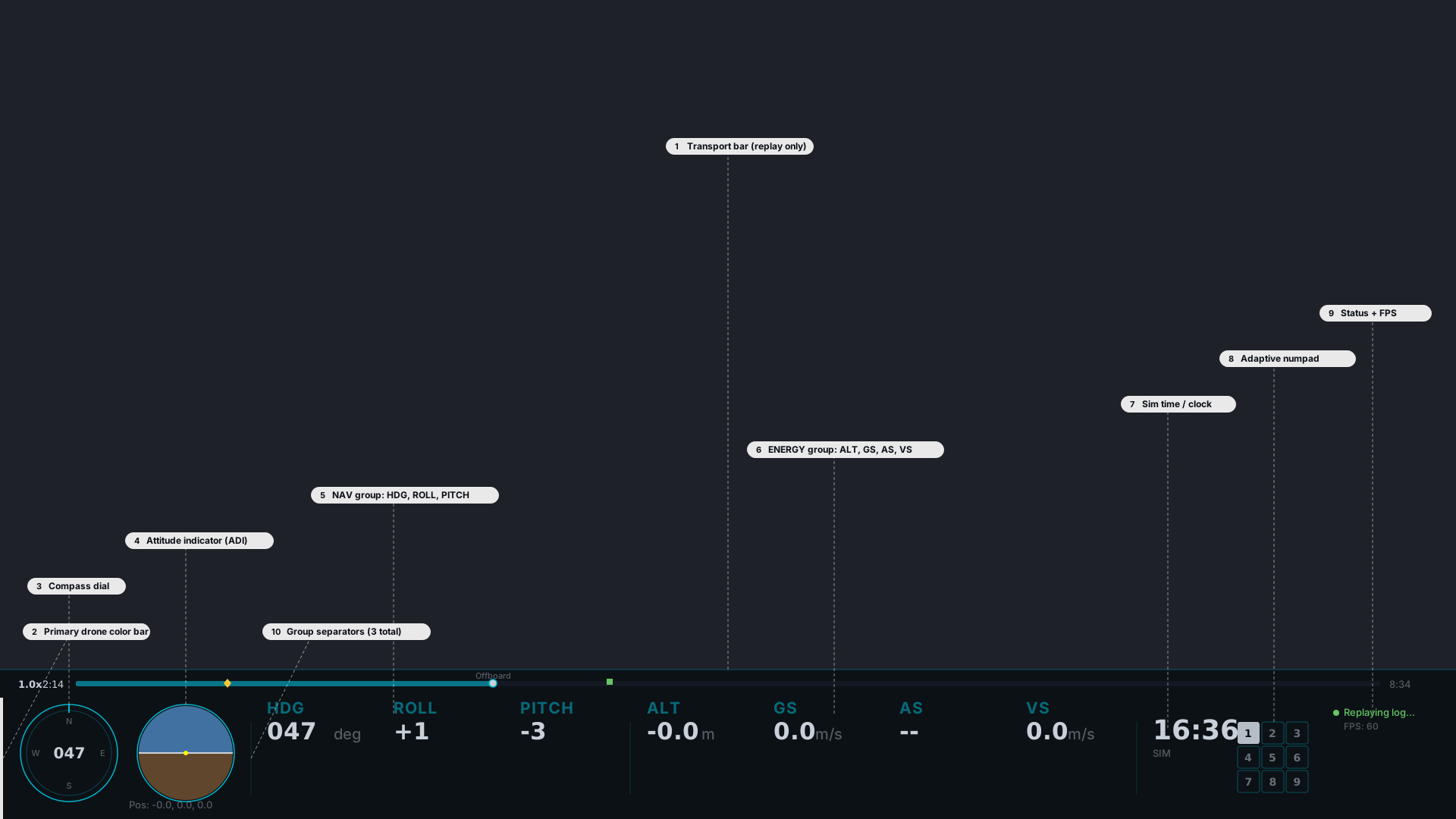
A row of seven numeric values anchored to the bottom of the screen:
- HDG: heading (0 to 360°, compass convention)
- ROLL: roll angle (°)
- PITCH: pitch angle (°)
- ALT: altitude above origin (m)
- GS: ground speed (m/s)
- AS: airspeed (m/s, fixed-wing and VTOL only)
- VS: vertical speed (m/s, positive climbing)
Press Y to toggle the HDG display between heading (0–360, compass convention) and yaw (±180, math convention).
Attitude indicator and compass strip
An attitude indicator (artificial horizon) sits at the bottom-left, showing roll and pitch visually. A heading tape with tick marks runs along the bottom for quick reference.
Numpad and pin sidebar
In multi-drone scenes, a numpad appears at the bottom-left. Press a number key to select that drone; hold Shift plus a number to pin a drone to the HUD sidebar on the right.
The numpad layout adapts to drone count:
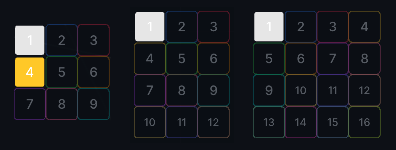
- ≤9 drones: 3×3 grid, single-digit direct select
- 10 to 12 drones: 3×4 grid with smaller font
- 13 to 16 drones: 4×4 grid
Drones 10–16 are selected via a two-digit chord: press both digits within 300 ms. For example, to select drone 12, press 1 then 2 quickly. Shift plus the same chord toggles pinning.
Transport bar
In replay mode, a transport bar runs along the bottom of the HUD showing:
- Playhead position with current time
- Scrubber for seeking
- Marker ticks for every marker in the flight (from all loaded drones; non-selected drones dimmed)
- Playback speed indicator
See ULog Replay for the complete replay control reference.
Status indicators
The Console HUD surfaces several status badges:
- Tier badge: current position data reliability (T1 / T2 / T3). See Position Data Tiers.
- ESTIMATED POSITION warning, shown when the reference frame is falling back to estimated origin.
- CONF / PRSN / RMSE badges: correlation statistics, visible when a secondary drone is pinned. See Correlation Analysis.
STATUSTEXT ticker
When replaying ULogs with logging messages (severity WARNING or worse), a message ticker appears above the HUD bar. Press N to toggle it on or off.
Font scaling
HUD text has minimum readable sizes at small window widths. At resolutions below 1280×720, label alpha is reduced slightly for contrast but all text remains legible. Don't rely on this behavior below 640×480; that's well outside the design target.
Tactical HUD
An alternative HUD mode designed for cinematic playback and screen recording. Minimal, floating, and focused on the selected vehicle.
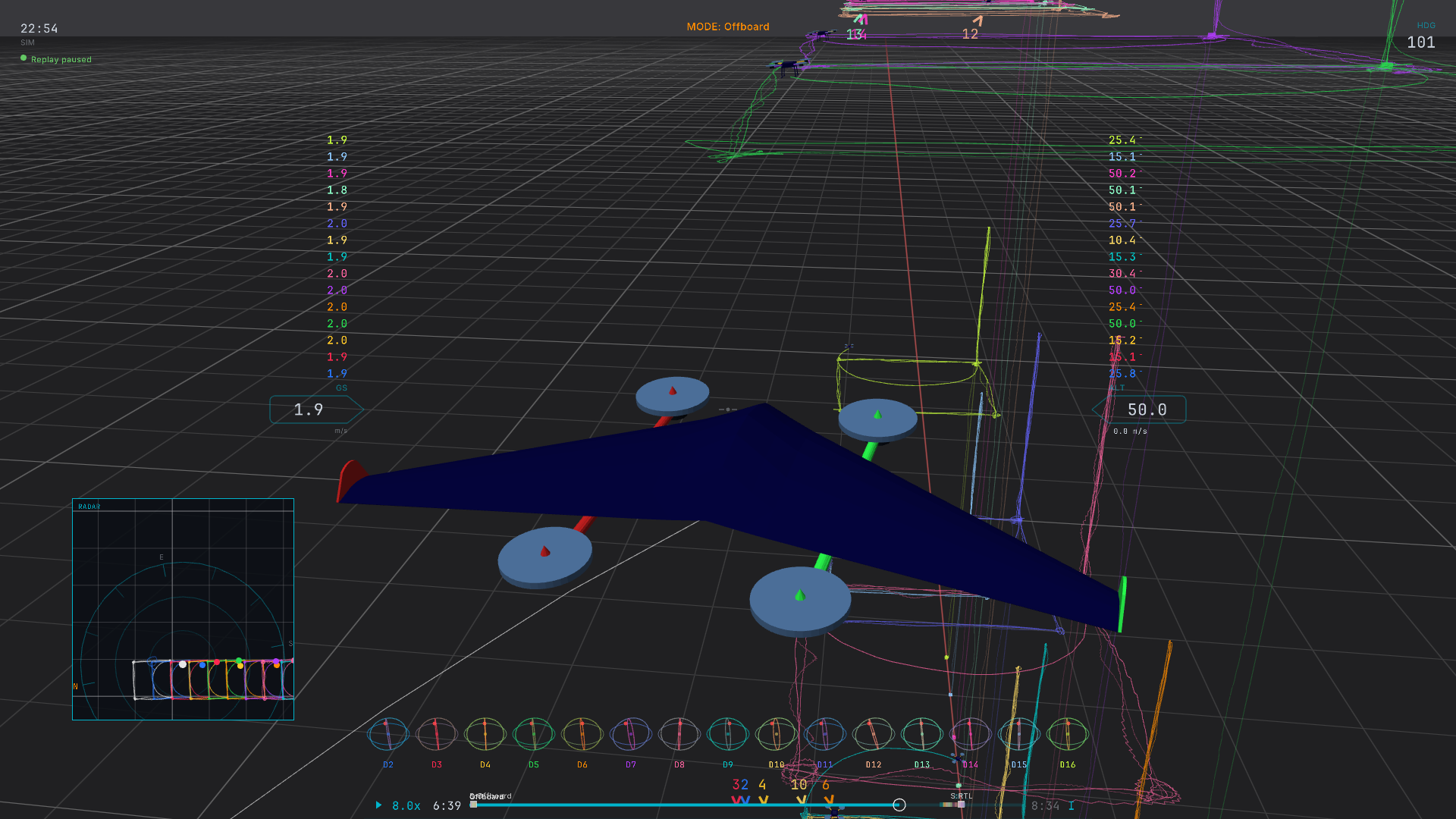
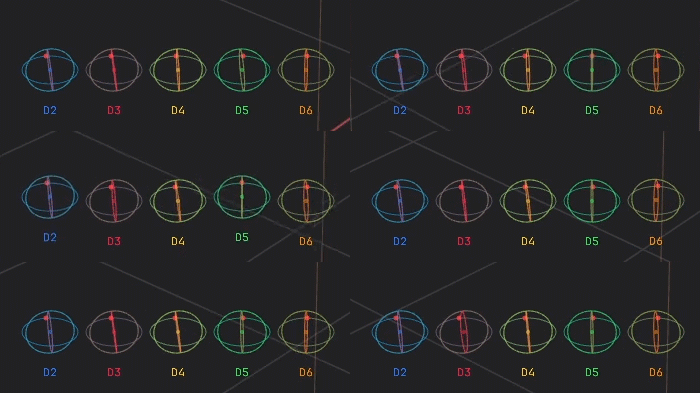
A more comprehensive view showing all tactical HUD elements active at once (multi-drone scene with pinned ring cells, radar panel, ticker, transport bar, gimbal rings, GS/ALT stacks):
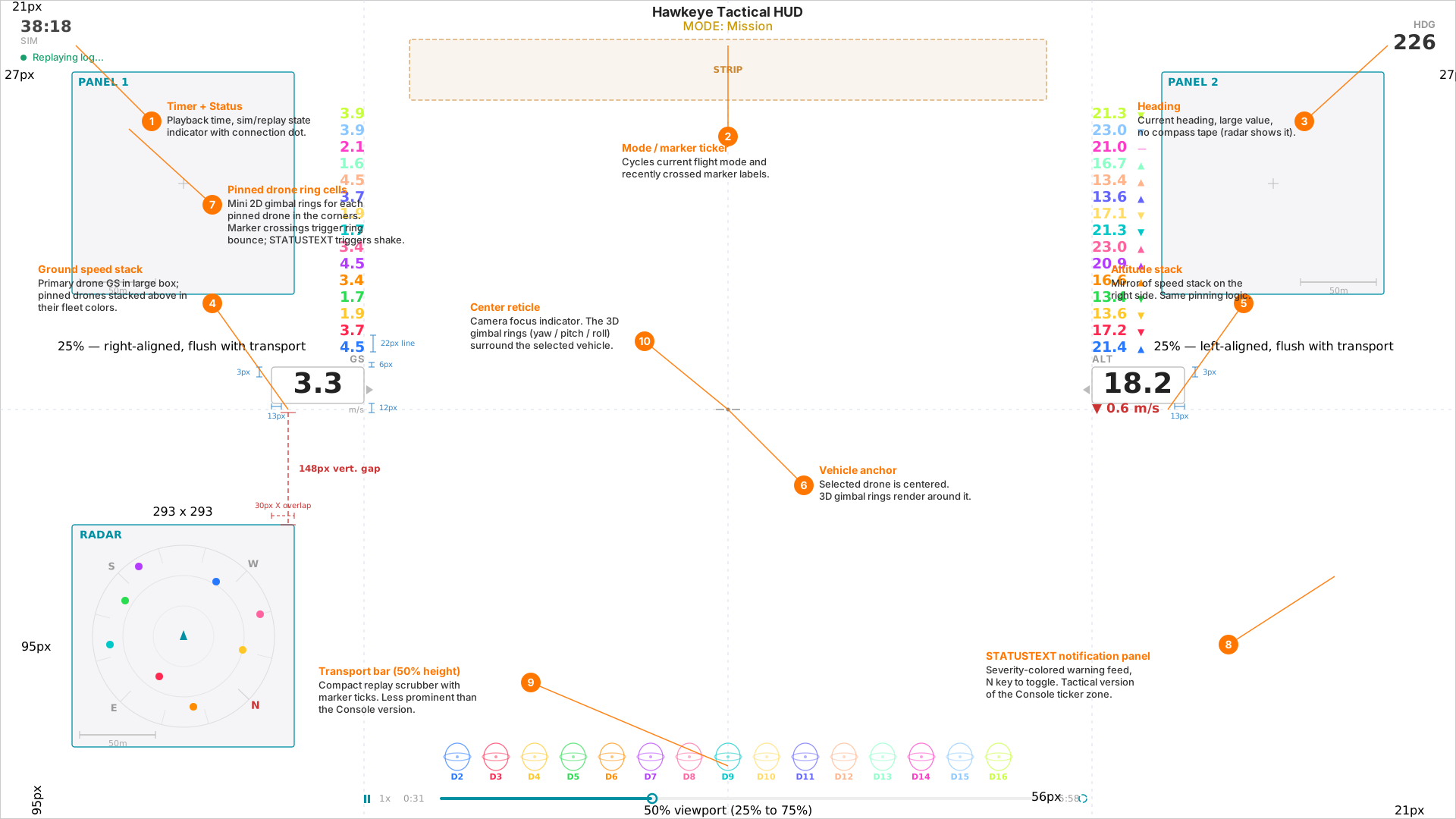
Press H from Console to enter Tactical. The camera smoothly zooms to a close chase distance on entry and restores when you exit.
Floating corner tags
Ground speed and altitude are displayed as large floating tags flanking the center of the screen. No other telemetry rows; Tactical is intentionally sparse.
Heading-up radar

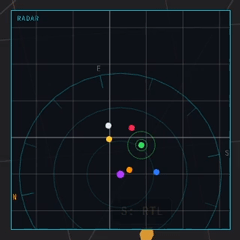
A 2D radar panel shows all drones as colored blips relative to the selected drone's heading (forward is up). A range ring indicates the visible distance scale. In multi-drone scenes with a pinned drone, the correlation line renders directly on the radar in the pinned drone's color.
Gimbal rings
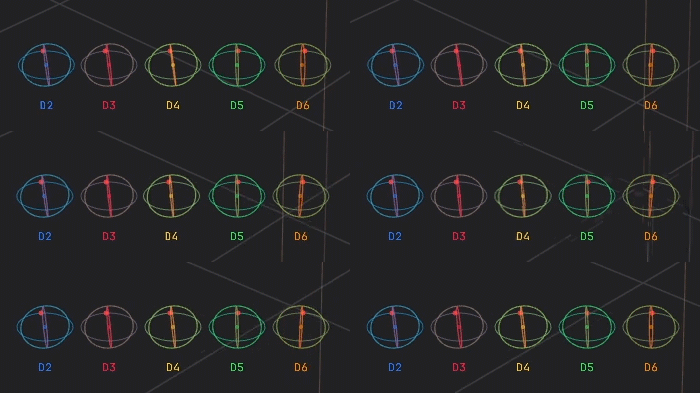
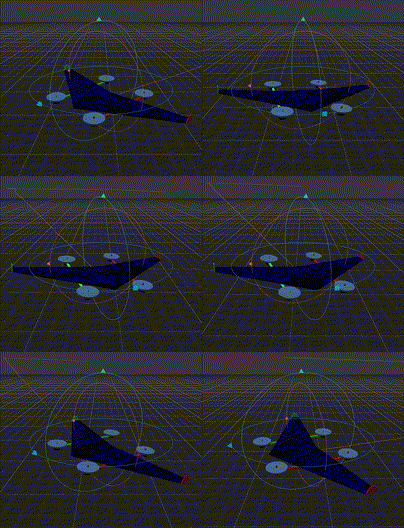
Three concentric 3D rings drawn around the selected vehicle represent yaw, pitch, and roll. Each ring has tick marks at key angles and a directional pyramid pointer.
In multi-drone scenes with pinned drones, mini 2D ring cells appear in a corner bar, one per pinned drone.
Ortho insets
Press O while in Tactical to add compact ortho view panels (top / front / right) at the top or bottom edge. Useful for keeping spatial context visible without switching cameras.
Ticker and transport bar
In Tactical mode, the STATUSTEXT ticker moves to a corner panel (bottom-right) so it doesn't dominate the view. The transport bar renders at 50% height.
Debug Overlay
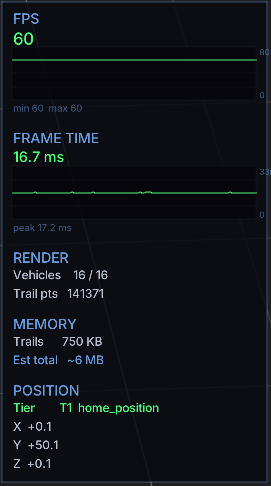
Press Ctrl+D to toggle a performance and diagnostics overlay on the right side of the screen. Independent of Console / Tactical, it can be enabled alongside either HUD mode (or with the HUD off entirely).
Contents:
- FPS: live frame rate with a color-coded graph and the min/max seen in the current window
- Frame time: milliseconds per frame with matching graph, a 16.67 ms target line (60 FPS), and a peak tracker
- Render stats: active vehicle count and total trail points across all drones
- Memory estimates: trail buffer usage and approximate total footprint
- Position: XYZ of the selected drone (Raylib draw-space coordinates) with a
BAD REFwarning if the reference frame is suspect - Position data tier: T1 / T2 / T3 indicator with full label
Colors adapt to the active theme. Use the debug overlay when diagnosing performance issues, verifying position reference, or checking memory footprint before sharing a replay session.
Annunciators
Annunciators are subtle HUD animations that draw attention to events without interrupting playback. Five animations ship built-in, each keyed to a specific event type and HUD mode.
| Annunciator | HUD mode | Triggered by |
|---|---|---|
| Console tab fade | Console | Marker crossing (any drone) |
| Gimbal ring bounce | Tactical | Marker crossing (pinned drone) |
| Radar droplet wave | Tactical | Marker crossing (any drone) |
| Ticker warning flash | Either | STATUSTEXT ≤ WARNING severity |
| Ring shake | Tactical | STATUSTEXT ≤ WARNING severity (per drone) |
Console tab fade
When playback crosses a marker, the affected drone's color bar in the Console sidebar double-pulses: fades out, fades back in, then pulses once more at smaller amplitude.
Gimbal ring bounce
In Tactical mode, a marker crossing for a pinned drone bounces that drone's gimbal ring cell vertically: two cycles, the second smaller.
Radar droplet wave
A marker crossing sends two expanding concentric rings outward from the affected drone's radar blip, like a droplet on water. Lets you spatially locate the event on the radar.
Ticker warning flash
When a new STATUSTEXT arrives during ULog replay, its ticker entry's background brightens and the text inverts briefly before returning to normal. Unmissable attention for new warnings.
Ring shake
STATUSTEXT warnings for a specific drone oscillate that drone's gimbal ring cell horizontally: three cycles at low amplitude. Associates the warning with the specific drone, without needing to read the ticker text.